Views
A view is a named web page or video stream. MQTT, the REST API, rotations and Home Assistant select views by name.
The Views page lists every view with its name, type, URL and what is customized about it. Each row has:
| Control | |
|---|---|
| Switch | On: the view is part of rotations. Off: every rotation skips it. It can still be shown directly, by name. Takes effect immediately. |
| Show | Shows the view on the kiosk now. |
| Configure | Opens the view's settings in a side panel. |
| ↑ ↓ | Reorder. Saved immediately. |
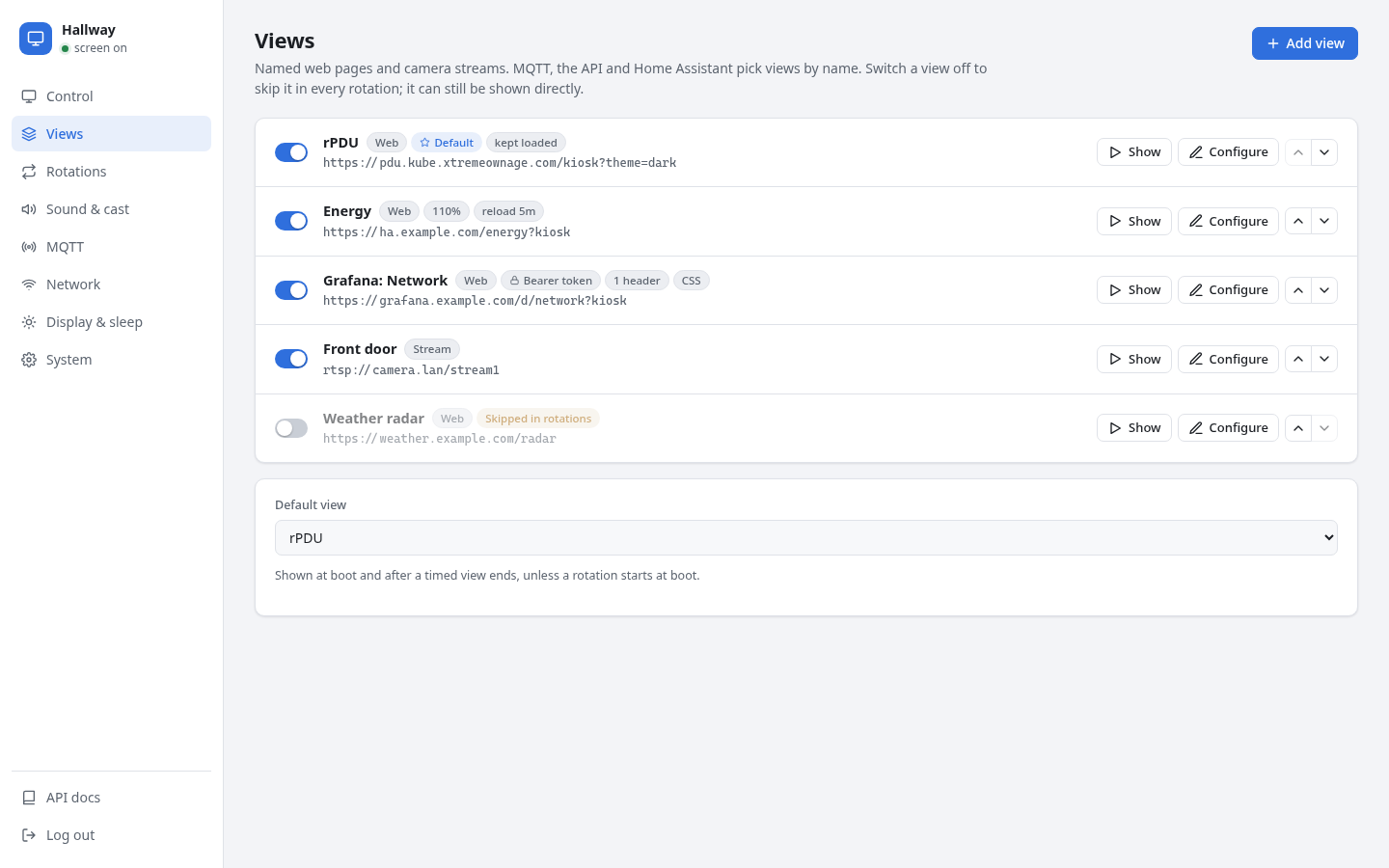
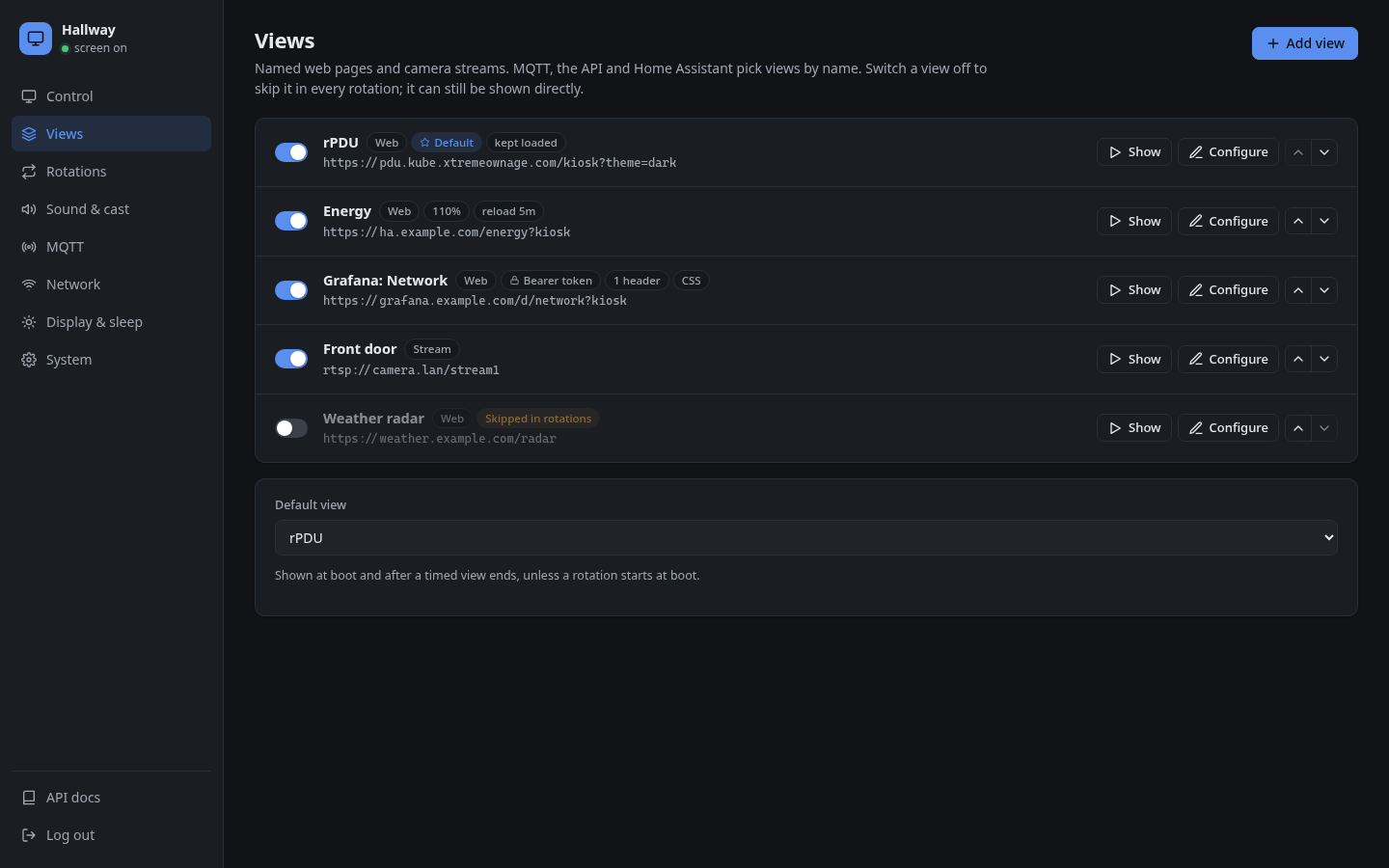
Add view opens the same panel for a new view. Default view below the list is what the kiosk shows at boot and after a timed view ends, unless a rotation starts at boot.
Configure
flowchart LR
    A[Configure] --> B[General<br/>name, type, URL,<br/>rotations, default]
    A --> C[Sign-in<br/>basic, bearer,<br/>Home Assistant token]
    A --> D[Request headers]
    A --> E[Page<br/>zoom, reload, CSS]
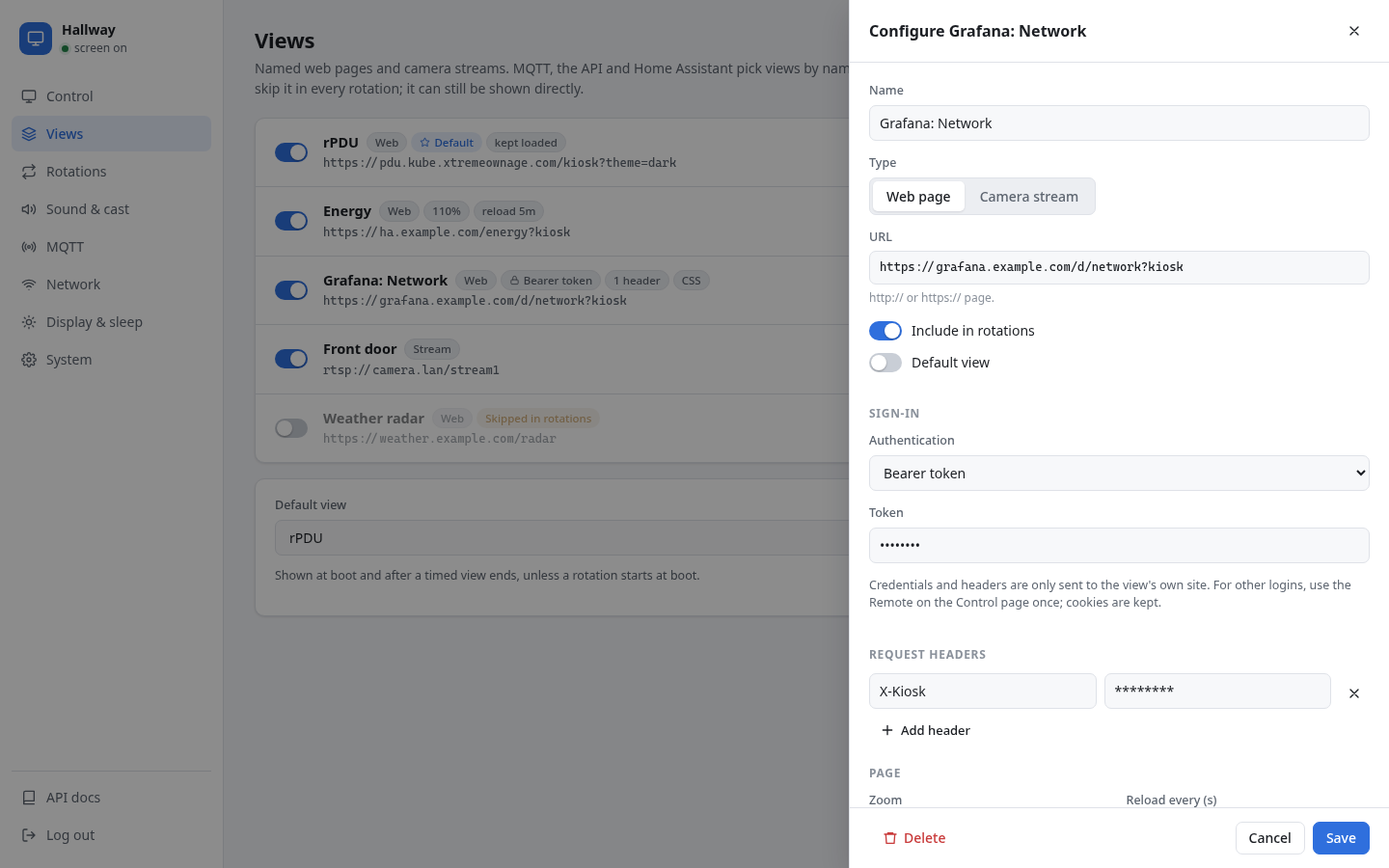
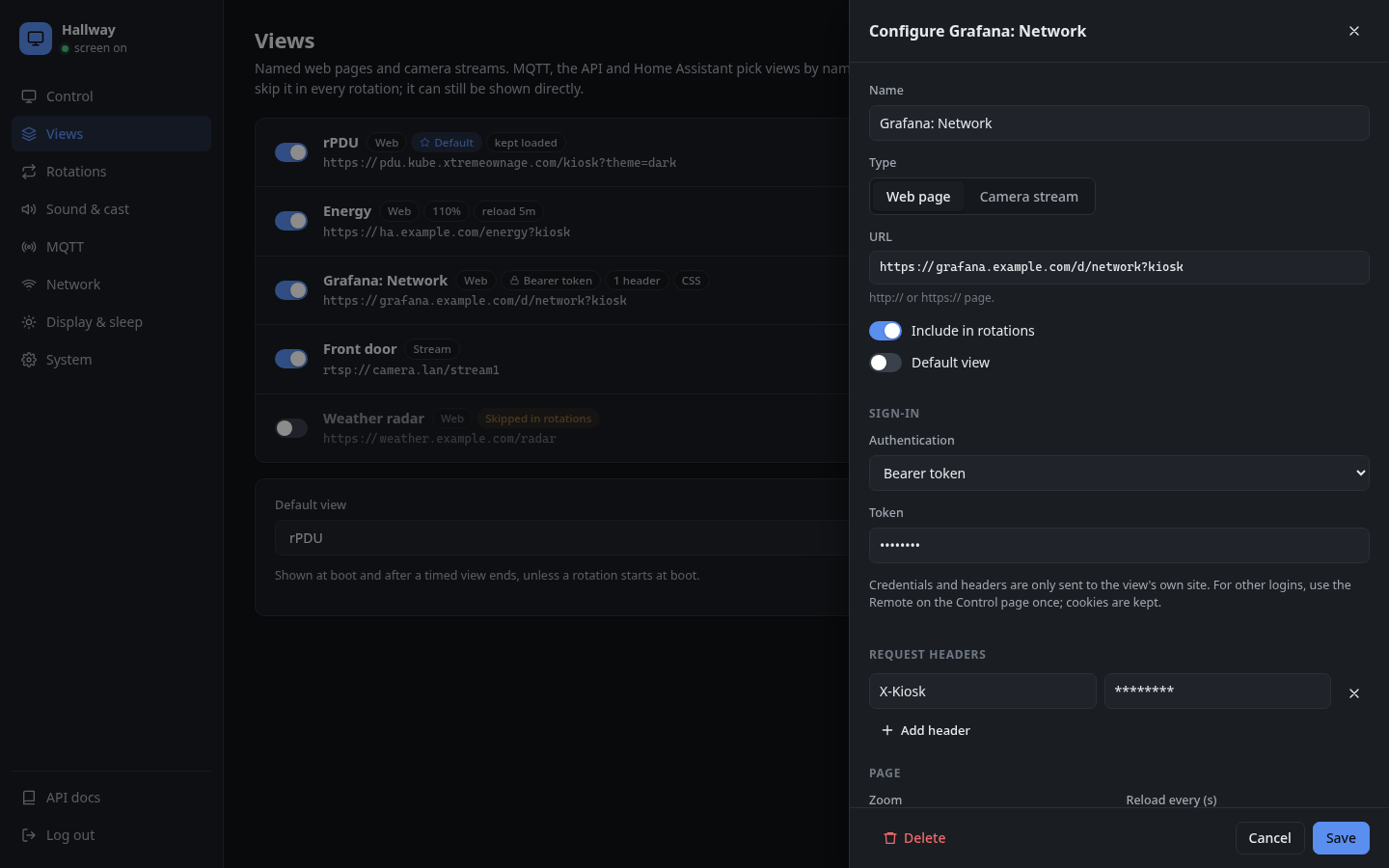
Save in the panel stores the view straight away. Delete removes it; a view that a rotation uses must be removed from the rotation first, or switched off instead.
| Field | |
|---|---|
| Name | Unique name used by commands and rotations. Renaming a view updates the rotations and the default view that use it. |
| Type | Web page, or Camera stream for video (RTSP, HTTP, SRT, …). |
| URL | The address. For streams, put credentials in the URL: rtsp://user:pass@camera/stream1. |
| Include in rotations | Same as the switch in the list. |
| Default view | Make this the default view. |
The remaining sections apply to web pages only.
Sign-in
| Type | What the kiosk does |
|---|---|
| None | Nothing. Log in once through the remote preview on the Control tab; Chromium keeps the cookies. |
| HTTP basic | Sends Authorization: Basic … with every request to the view's site. |
| Bearer token | Sends Authorization: Bearer <token>. |
| Home Assistant long-lived token | Puts the token where the Home Assistant frontend looks for its login, before the page loads, so the dashboard opens without a login screen. Create the token in Home Assistant under your profile → Security → Long-lived access tokens. |
Request headers
Extra headers, such as X-Kiosk: hallway or an API key header for a reverse proxy.
Headers and basic or bearer credentials go only to the view's own origin (scheme, host and port). Scripts, images and APIs that the page loads from other sites never see them.
Page
| Setting | |
|---|---|
| Zoom | Page zoom, for example 1.25 for 125%. |
| Reload every N seconds | Reloads the page on a timer, for dashboards that leak memory or stop updating. |
| Keep loaded in the background | Leave the page running in a hidden tab after another view is shown, so coming back is instant. See Preloading. |
| Custom CSS | Injected into every page of the view. Use it to hide headers, sidebars or banners. |
Example CSS for a Home Assistant dashboard without the top bar:
home-assistant { --header-height: 0px; }
Secrets
The web UI and GET /api/config never show stored passwords, tokens or header values: they appear as ********. Leaving ******** in place when saving keeps the stored value. Typing a new value replaces it.
Showing a view from Home Assistant
action: mqtt.publish
data:
  topic: pikiosk/hallway/cmd
  payload: '{"action":"view","name":"doorbell-cam","duration":60}'
With duration, the kiosk goes back afterwards to what it was showing, or to its rotation. Without it, the view stays until the next command.