Updating
None of these methods needs a reflash, and settings in /var/lib/pikiosk are kept. Before a reflash, download a backup.
Release check
The kiosk asks GitHub twice a day whether a newer pikiosk release exists. On its own it only reports; installing is up to you, or to automatic updates below.
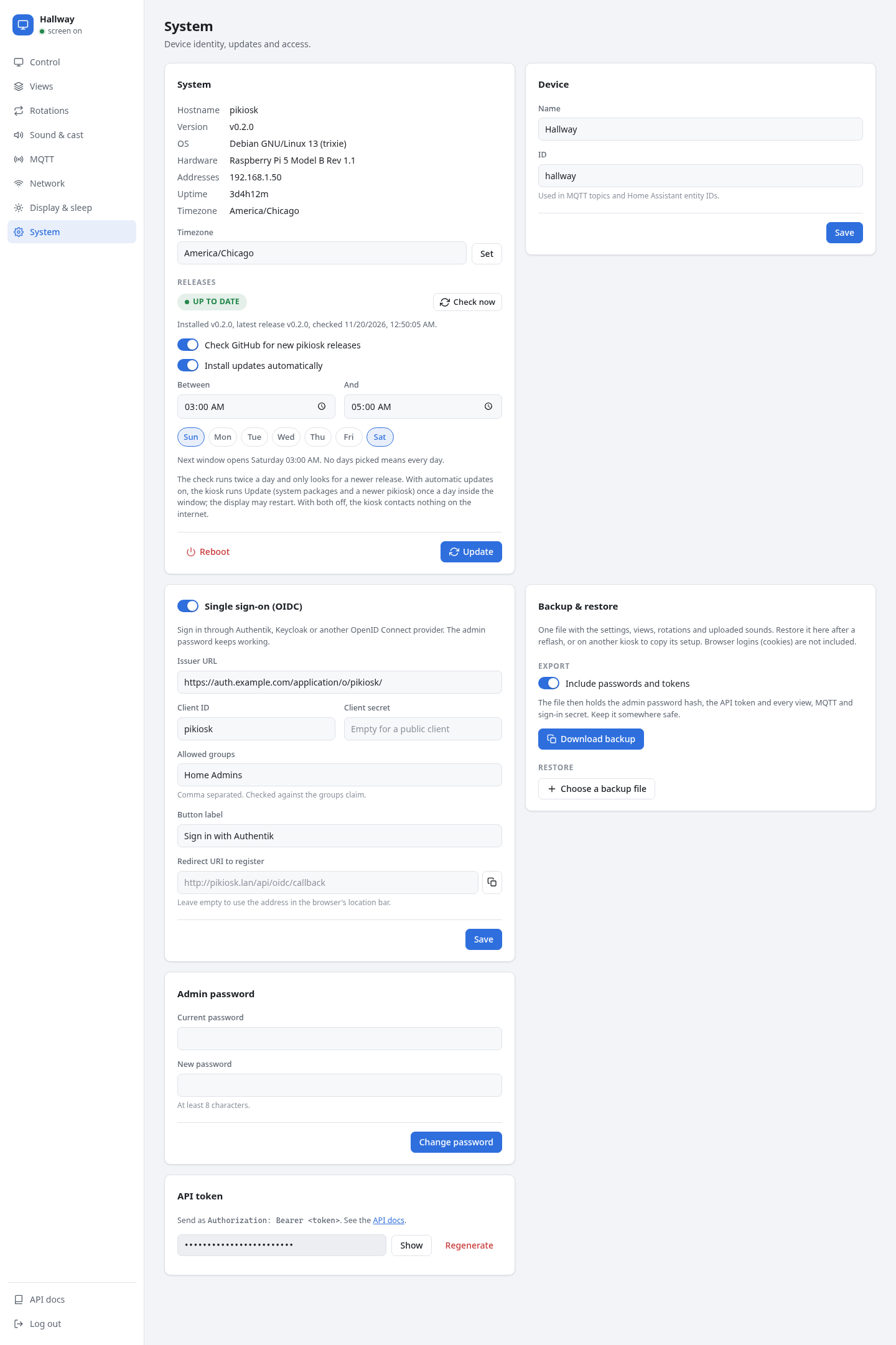
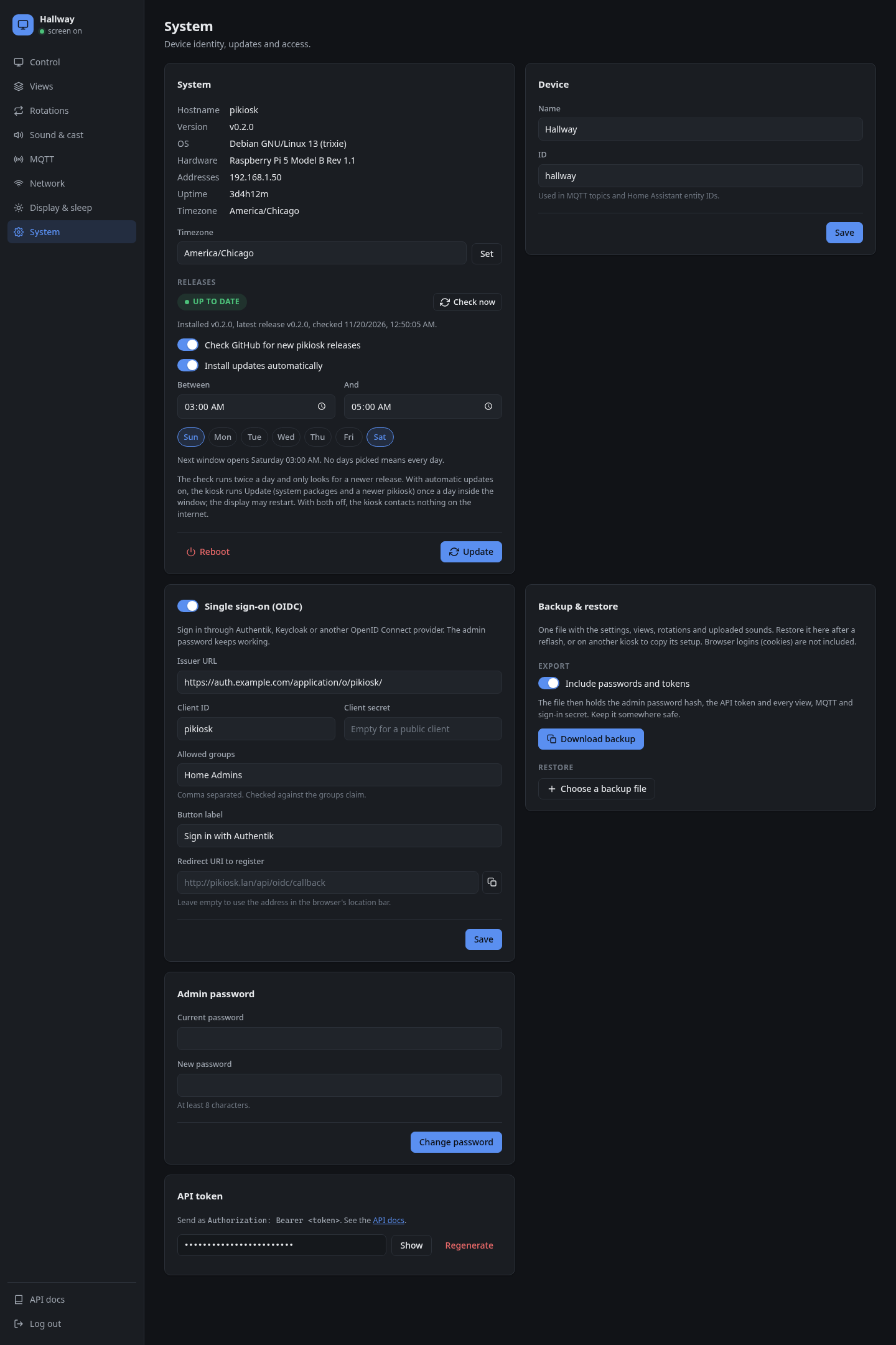
- System → Releases shows a green Up to date or a red Update available tag. With an update available, Update now installs it straight away. Check now asks GitHub again. The sidebar shows Update available too.
- Home Assistant gets an update entity (Settings → Updates). Its Install button runs the same update as the web UI.
- Turn it off with the switch under System → Releases; the kiosk then contacts nothing on the internet. It stays off across updates.
- A build newer than the latest release, such as one installed with
deploy.sh, is never offered an older release.
Automatic updates
Switch on Install updates automatically under System → Releases and pick a window: a start and end time, and optionally the days. Once a day inside that window the kiosk runs the same Update as the button: system packages, then a newer pikiosk release if there is one. The display may restart while it runs.
| Setting | |
|---|---|
| Between / And | Local time. A window that ends before it starts, such as 23:00 to 02:00, runs past midnight and belongs to the day it starts. |
| Days | The days the window opens. None picked means every day. |
- It runs at most once per day, also across restarts, and not while an update is already running.
- It needs the release check on; turning the check off turns automatic updates off too.
automatic update startedappears in the activity feed and on MQTT, and System → Releases shows when it last ran.- The time follows the timezone set under System, including changes made without a restart.
From the web UI
System → Update:
- upgrades the Raspberry Pi OS packages (
apt full-upgrade) - if a newer pikiosk release exists on GitHub, downloads its
pikiosk-arm64.tar.gz, checks it against the published SHA-256 and installs it
The log appears under the button while it runs. The display may restart.
To follow a fork, or to turn release updates off, edit /etc/default/pikiosk-update:
# GitHub owner/repo whose releases System -> Update installs. Empty: off.
PIKIOSK_RELEASES=XtremeOwnage/pikiosk
Over SSH
ssh admin@pikiosk.local
curl -fLO https://github.com/XtremeOwnage/pikiosk/releases/latest/download/pikiosk-arm64.tar.gz
tar xzf pikiosk-arm64.tar.gz && sudo bash pikiosk/install.sh
install.sh is safe to re-run. It reinstalls the packages, the daemon and the service files, then restarts the kiosk.
From a checkout
deploy/raspios/deploy.sh admin@pikiosk.local
This cross-compiles kioskd for arm64, copies it with the installer over SSH and runs the installer. Use it to try changes on a real kiosk.
Rolling back
Raspberry Pi OS installs cannot roll back automatically. To go back, install an older release's pikiosk-arm64.tar.gz the same way.